
Have you signed up for Adobe Stock’s free trial but decided it’s not for you? Don’t worry, canceling your subscription is easier than you might think. Whether you’re looking to avoid unexpected charges or simply want to explore other options, knowing how to cancel your Adobe Stock free trial is essential.
In this guide, we’ll walk you through the step-by-step process of canceling your Adobe Stock free trial. You’ll learn how to navigate Adobe’s account management system and ensure your subscription is terminated before any fees are incurred. We’ll also cover some important details to keep in mind, such as deadlines and potential alternatives to consider.
Understanding Adobe Stock Free Trial
What’s Included in the Free Trial
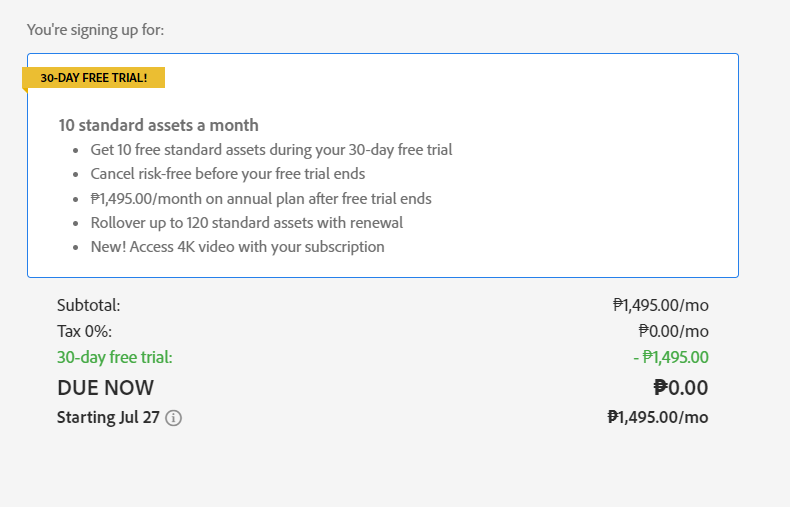
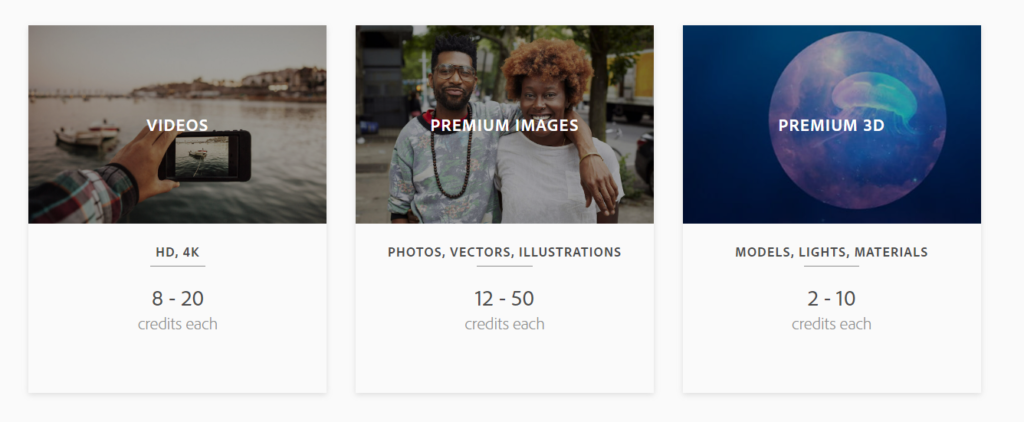
The Adobe Stock free trial grants access to a vast library of high-quality stock images, videos, and templates. During this period, you can download and use up to 10 assets without charge. These assets include:
- High-resolution photos
- Vector graphics
- Illustrations
- Video footage
- 3D models
- Templates for various design projects
Adobe Stock integrates seamlessly with other Adobe Creative Cloud applications, allowing you to incorporate these assets directly into your workflow.
Trial Duration and Limitations
The Adobe Stock free trial typically lasts for 30 days. Key limitations to keep in mind:
- Download limit: 10 assets
- Access to standard license content only
- No access to premium or extended license content
- Watermarked previews for non-downloaded assets
After the trial period ends, your account automatically converts to a paid subscription unless canceled. To avoid unexpected charges, mark your calendar with the trial end date and decide whether to continue or cancel before the deadline.
Preparing to Cancel Your Free Trial
Before initiating the cancellation process, take these essential steps to ensure a smooth experience.
Checking Your Trial Status
Verify your Adobe Stock free trial status by logging into your Adobe account. Navigate to the “Manage Plan” section to view your current subscription details. Look for the trial end date to determine how much time remains before automatic renewal occurs. This information helps you plan the cancellation timing effectively.
Gathering Necessary Account Information
Collect the following details to expedite the cancellation process:
- Adobe ID and password
- Trial start date
- Number of assets downloaded during the free trial
- Billing information associated with your account
Having this information readily available streamlines the cancellation procedure and ensures you can address any potential questions about your Adobe Stock free trial usage.
Steps to Cancel Adobe Stock Free Trial
Canceling Through Your Adobe Account
- Log in to your Adobe account at account.adobe.com
- Navigate to “Plans & Products” in the left sidebar
- Locate “Adobe Stock” in your active subscriptions
- Click “Manage plan” next to Adobe Stock
- Select “Cancel plan” and follow the prompts
- Confirm your cancellation and retain the confirmation number
- Visit adobe.com/go/contact
- Choose “Adobe Stock” from the product list
- Select “Subscriptions and Payments” as the issue type
- Click “Cancel subscription” as the specific issue
- Choose your preferred contact method (phone or chat)
- Provide your Adobe ID and account details to the support agent
- Request cancellation of your Adobe Stock free trial
- Obtain a cancellation confirmation number for your records
Confirming Cancellation

After initiating the cancellation process for your Adobe Stock free trial, it’s crucial to confirm that the cancellation was successful. Follow these steps to ensure your subscription has been terminated.
Checking for Confirmation Email
Check your email inbox for a confirmation message from Adobe. The email typically arrives within a few minutes of canceling your Adobe Stock free trial. Look for subject lines such as “Your Adobe Stock subscription has been canceled” or “Confirmation of Adobe Stock trial cancellation.” If you don’t see the email in your inbox, check your spam or junk folder. Save this email for future reference as proof of cancellation.
Verifying Account Status
Access your Adobe account to verify the cancellation:
- Log in to your Adobe account at account.adobe.com
- Navigate to the “Plans” or “Subscriptions” section
- Look for your Adobe Stock subscription
- Confirm the status shows as “Canceled” or “Ending on [date]”
- Check the listed end date matches your trial’s expiration
If you don’t see the cancellation reflected in your account, contact Adobe Support immediately. Ensure you have your Adobe ID and confirmation number (if provided during cancellation) ready when reaching out to customer service.
Avoiding Charges After Free Trial

Understanding Auto-Renewal Policies
Adobe Stock’s free trial automatically converts to a paid subscription at the end of the 30-day period. The auto-renewal policy ensures uninterrupted access to Adobe Stock images but can lead to unexpected charges if you forget to cancel. Review the terms and conditions of your Adobe Stock free trial to understand the specific details of the auto-renewal process.
Timing Your Cancellation
Cancel your Adobe Stock free trial at least 24 hours before the trial period ends to avoid charges. Mark the end date of your 30-day trial on your calendar and set a reminder 2-3 days before the deadline. This buffer allows time to address any potential issues during the cancellation process. Canceling early does not affect your ability to use the trial for its full duration, including access to Adobe Stock images until the original end date.
Troubleshooting Common Issues

While canceling your Adobe Stock free trial is usually straightforward, you might encounter some issues. Here’s how to address common problems:
Unable to Find Cancellation Option
If you can’t locate the cancellation option for your Adobe Stock free trial:
- Clear your browser cache and cookies
- Try accessing your Adobe account from a different browser
- Ensure you’re logged into the correct Adobe account
- Navigate to the “Plans” or “Subscriptions” section of your account
- Look for “Adobe Stock” or “Stock” in your list of subscriptions
- Contact Adobe Support if the option remains hidden
Dealing with Unexpected Charges
If you’ve been charged unexpectedly after your Adobe Stock free trial:
- Check your bank statement for the exact charge date
- Compare the charge date with your free trial end date
- Contact Adobe Support immediately with your account details and transaction information
- Explain that you intended to cancel before the trial ended
- Request a refund, citing the Adobe Stock refund policy
- If unsuccessful, consider disputing the charge with your bank or credit card company
Remember, canceling your Adobe Stock free trial at least 24 hours before it ends prevents unexpected charges and ensures you don’t transition to a paid subscription automatically.
Alternatives to Cancellation

If you’re not ready to cancel your Adobe Stock free trial completely, consider these alternatives:
Pausing Your Subscription
Adobe Stock offers a pause option for your subscription. To pause:
- Log in to your Adobe account
- Navigate to “Plans & Products”
- Select “Manage Plan” next to Adobe Stock
- Choose “Pause Plan” option
- Select a duration for the pause (1-3 months)
Pausing allows you to temporarily stop your subscription without losing access to your saved Adobe Stock images.
Downgrading Your Plan
Instead of canceling, downgrade your Adobe Stock plan to a more affordable option:
- Access your Adobe account
- Go to “Plans & Products”
- Click “Manage Plan” for Adobe Stock
- Select “Change Plan”
- Choose a lower-tier plan with fewer monthly downloads
Downgrading reduces your access to Adobe Stock images but maintains your account and saved content at a lower cost.
Key Takeaways
- Cancel your Adobe Stock free trial at least 24 hours before the 30-day period ends to avoid charges
- Log into your Adobe account and navigate to “Plans & Products” to cancel through the website
- Contact Adobe Support via phone or chat if you can’t find the cancellation option
- Confirm cancellation by checking for a confirmation email and verifying your account status
- Consider alternatives like pausing or downgrading your subscription if you’re not ready to cancel
- Keep your confirmation number and email as proof of cancellation for future reference
Conclusion
Canceling your Adobe Stock free trial doesn’t have to be a hassle. By following the steps outlined in this guide you can easily avoid unwanted charges and manage your subscription effectively. Remember to act before your trial ends and keep any confirmation details for your records. If you’re still interested in Adobe Stock’s offerings consider exploring alternative options like pausing or downgrading your plan. With these insights you’re now equipped to make informed decisions about your Adobe Stock subscription and ensure it aligns with your needs and budget.